Posts

Kill Vista's explorer.exe in 3 clicks
Image
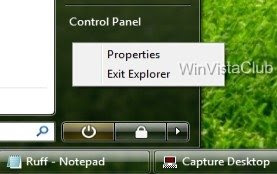
The usual way of terminating the explorer process is through the Task manager. Rt-Click taskbar > Task manager > Process Tab > Right Click explorer.exe > End Process. But Vista actually offers you a faster way to do it ... in 3 clicks ! Click Start button > Hold down Ctrl+Shift & Right Click on empty area in the Start Menu > Click "Exit Explorer". To re-start it, you will have to do so as usual through the Task Manager. Click Ctrl+Alt+Delete and select Star Task Manager or press Ctrl+Shift+Esc. Then launch explorer.exe manually.
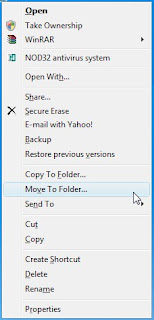
Add Move To or Copy To to Windows Vista Explorer Right Click

Image
Type regedit in Vista's start menu search box and hit enter to open the Registry Editor. Navigate to key HKEY_CLASSES_ROOT\AllFilesystemObjects\shellex\ContextMenuHandlers Right Click on it > New Key > Name > Move To > Enter following value: {C2FBB631-2971-11D1-A18C-00C04FD75D13} This will add Move To to the context menu. To add Copy To, name the key Copy To instead, and give it value {C2FBB630-2971-11D1-A18C-00C04FD75D13} In case you find that Send To is missing from your rt click context menu, to add it back, name the key Send To instead, and give it value {7BA4C740-9E81-11CF-99D3-00AA004AE837}

Gmail Shortcuts

Key -> Definition -> Action c -> Compose -> Allows you to compose a new message. + c allows you to compose a message in a new window. then -> Send message -> After composing your message, use tdis combination to send it automatically. (Supported in Internet Explorer and Firefox, on Windows.) k -> Move to newer conversation -> Opens or moves your cursor to a more recent conversation. You can hit to expand a conversation. j -> Move to older conversation -> Opens or moves your cursor to the next oldest conversation. You can hit to expand a conversation. n -> Next message -> Moves your cursor to the next message. You can hit to expand or collapse a message. (Only applicable in 'Conversation View.') p -> Previous message -> Moves your cursor to the previous message. You can hit to expand or coll...

Resize Your Wallpaper

If you just switched to a wide-screen monitor, your desktop wallpaper image may no longer look right, or maybe you just want to make a small adjustment to it. For more-granular control of your wallpaper's placement, highlight the following key: HKEY_CURRENT_USER\ControlPanel\desktop Double-click the WallpaperOriginX icon in the right pane. (If you don't see this icon, right-click in this pane, choose New, String Value, type WallpaperOriginX to name the value, and press .) Type a number (in pixels) for the starting horizontal position of your wallpaper's left edge, and press . Now double-click the WallpaperOriginY icon (create it if necessary as explained above) and enter a number for the starting vertical position of the image's top edge. If your wallpaper image is larger than the screen, type a negative number (for example, -200) to push the picture's top or left edge off the screen. To test the effect, first minimize the Registry Editor (and any other...

Reducing the Wait Time

When you start to shut down Windows XP, it has to quit, or "kill," any live applications or processes that are currently running. So close all applications first. However, some applications and processes are always running in the background. You can reduce the amount of time that Windows XP waits for those applications and processes to close before Windows XP kills them. 1. Open registry editor 2. Navigate to HKEY_USERS\.DEFAULT\Control Panel\Desktop. Set the WaitToKillAppTimeout and set the value to 1000. Select the HungAppTimeout \newline value and set it to 1000 as well. {mine r set to 100.} 3. Navigate to HKEY_LOCAL_MACHINE\System\CurrentControlSet\Control. Select the WaitToKillServiceTimeout value and set it to 10000. {mine is set to 100.} 4. Close the Registry Editor.

Hack Your BIOS for Faster Startups

You can speed up your startup procedures by changing the BIOS with the built-in setup utility. How you run this utility varies from PC to PC, but you typically get to it by pressing the Delete, F1, or F10 keys during startup. You'll come to a menu with a variety of choices. Here are the choices to make for faster system startups: Quick Power On Self Test (POST) When you choose this option, your system runs an abbreviated POST rather than the normal, lengthy one. Boot Up Floppy Seek Disable this option. When it's enabled, your system spends a few extra seconds looking for your floppy drivea relatively pointless procedure, especially considering how infrequently you use your floppy drive. Boot Delay Some systems let you delay booting after you turn on your PC so that your hard drive gets a chance to start spinning before bootup. Most likely, you don't need to have this boot delay, so turn it off. If you run into problems, however, you can turn it back on.

Automatically Killing Tasks on Shutdown

You start to shut down the computer, you wait a few moments, and then you see a dialog box asking if you want to kill an application or service that is running. Instead of prompting you, you can make Windows XP take care of the kill task automatically. Here's how: 1. Open the Registry Editor. 2. Navigate to HKEY_CURRENT_USER\Control Panel\Desktop. 3. Highlight the value AutoEndTasks and change the value to 1. 4. Close the Registry Editor.