Posts

Showing posts with the label registry tweaks

Control RegEdit's Key Memory

The feature that permits the Registry to remember the last-used key was added to Windows XP, along with the ability to save often-used keys as Favorites. The only way to disable this feature is to block the Registry from saving the last-used key information. To do this, open the Registry and look for this key: HKEY_CURRENT_USER\Software\Microsoft\Windows\CurrentVersion\Applets\Regedit Right-click on the 'LastKey' value in the right pane and select 'Modify'. Erase everything in the 'Value Data' box and leave it blank then click OK. Now, with the 'RegEdit' key in the left pane highlighted, go to 'Edit->Permissions' at the top of the Registry window. Select a User Name then select the 'Deny' checkbox next to 'Full Control' and click OK. The Registry will now no longer save the last used key, but remember that you will no longer be able to use the Favorites menu. If you prefer not to disable this feature, a fast way to colaps...
Clear The Last Logon

If you're part of a network running Windows, you're prompted to log on to get access. You always know who was there before you, because Windows remembers the last username entered and displays it when you log on. There are a million reasons why you might not want this info displayed. Whatever those reasons may be, we'll show you how to erase that info so the username is blank when the next person logs on. 1. Click on the Start button and select Run 2. Type in 'regedit' and press OK 3. Look for the following key: HKEY_LOCAL_MACHINE\SOFTWARE\Microsoft\Windows\CurrentVersion\policies\system 4. In the right pane double-click on 'dontdisplaylastusername' 5. Change the value from 0 to 1 and press OK 6. Exit the Registry Now when you log off the network or restart the computer, the last username will no longer carry over. They'll never know who used the computer last.

Backup/Restore The Registry

Backing up the Registry is very important. If you delete or change certain keys, you could cause your computer to act improperly or it may not start at all. You should back up the Registry often, depending on how you use your computer (you should always do a backup before making any changes to the Registry). To backup or restore the registry, follow the steps below. When backing up the Registry, it is recommended that you save the file to a removable media device such as CD-Rom or Zip drive. If you save the file to your computer, you should write down the location of it as you will need this information if you need to restore the Registry, or save the file to a location that is easy to remember (such as the 'C:\Windows' directory). Backup/Restore The Registry In Windows 95/98/Me You can use the Reigistry Checker to create a backup of the registry at any time.This is a good idea if you're about to edit the Registry and want to ensure that you get yourself back up and r...

Add 'Open New Window' in right-click

You can add the 'Open New Folder' option, when browsing from folder to folder, to the right-click menu by going to the Regsitry and looking for this string: HKEY_CLASSES_ROOT\Directory\Default Icon\Shell\Shellex Right-click on the 'Shell' string and select 'New->String Key' and name it 'opennew'. Right-click on the new string and change the value to read 'Open New & Window'. Right click on the 'opennew' string and select 'New->String Key' and name it 'Command'. Right-click on it and change the value to read %1.

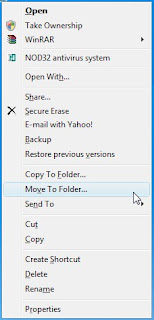
Add Move To or Copy To to Windows Vista Explorer Right Click

Image
Type regedit in Vista's start menu search box and hit enter to open the Registry Editor. Navigate to key HKEY_CLASSES_ROOT\AllFilesystemObjects\shellex\ContextMenuHandlers Right Click on it > New Key > Name > Move To > Enter following value: {C2FBB631-2971-11D1-A18C-00C04FD75D13} This will add Move To to the context menu. To add Copy To, name the key Copy To instead, and give it value {C2FBB630-2971-11D1-A18C-00C04FD75D13} In case you find that Send To is missing from your rt click context menu, to add it back, name the key Send To instead, and give it value {7BA4C740-9E81-11CF-99D3-00AA004AE837}

Backup and Restore Your Registry

I have been giving lectures on how to edit registry. But I never talked even a single word about backing up or restoring the registry. Well, it is my honest mistake. I admit it. One incident prompted me to write this section. I received an mail from “Ajith Kumar" who while editing his system registry , accidently changed the file associations. Well, thank God, it was not a major one! But what would have happened if he had done something else?? So this time I'm not taking any chances. You back it up or not, here is my tip to backup and restore your system reg settings. We use the XP Backup utility for backing up the registry . To get this utility go to: START [1] PROGRAMS [1] ACCESSORIES [1] SYSTEM TOOLS [1] BACKUP. The wizard will launch, Then click next. Choose BACKUP FILES AND SETTINGS. Click next. Choose LET ME CHOOSE WHAT TO BACKUP. Click next. Expand the section for MY COMPUTER (click the minus sign next to it) and place a check mark in the box next to S...